If you have ever exported a SQL database table or pulled contact lists from your CRM, only to find yourself staring at two massive CSV files that do not match, you know how frustrating data reconciliation can be. What should be a quick check often turns into a headache of misaligned rows, broken delimiters, and system crashes.
The immediate reaction for many operations analysts or developers is to search for a quick, online CSV compare tool. But if your spreadsheets contain sensitive customer records, financial tables, or system logs, uploading them to public cloud servers exposes your organization to severe security risks.
Here is how you can compare CSV files online safely, resolve formatting pitfalls, and match columns efficiently using private, local-first browser techniques.
1. The Row-Shift Trap in Plain-Text Diff Tools
Most standard difference checkers (such as git diff or general web-based text diff tools) evaluate files line-by-line. If Row 3 in File A is deleted or moved to Row 20 in File B, the checker flags every single line in between as a deletion or addition.
Traditional diff checkers treat your database exports as sequential lines of text. However, a CSV is not text; it is structured tabular data.
[Row-by-Row Diff: Mismatched Offset]
File A           File B
Row 1: Item 1    Row 1: Item 1
Row 2: Item 2    Row 2: Item 3  <── Row Deleted in File A
Row 3: Item 3    Row 3: Item 4  <── Mismatch Flagged!
Row 4: Item 4    Row 4: Item 5  <── Mismatch Flagged!
(Every row below offset triggers false mismatches)
To resolve this row-shift trap, you need to use Key-Based Column Matching. Instead of comparing lines sequentially, the comparison engine indexes your datasets using a unique identifier column (like an order_id, email, or sku). It searches for matches regardless of their vertical row index:
[Key-Based Matching: Aligned Row Search]
File A                          File B
Row 1: [ID: 101] Item 1  <───>  Row 1: [ID: 101] Item 1  (Aligned match)
Row 2: [ID: 102] Item 2         Row 5: [ID: 102] Item 2  (Row position ignored)
Row 3: [ID: 103] Item 3  <───>  Row 2: [ID: 103] Item 3  (Aligned match)
2. Common Delimiter and Formatting Pitfalls in CSVs
Before running a comparison, you must address the format inconsistencies that frequently break lookup formulas.
Delimiter Inconsistencies
CSV stands for Comma-Separated Values, but data systems export fields using semicolons (;), tabs (\t), or pipe symbols (|). If File A is comma-separated and File B is semicolon-separated, your columns will compile as single strings, causing the comparison to fail.
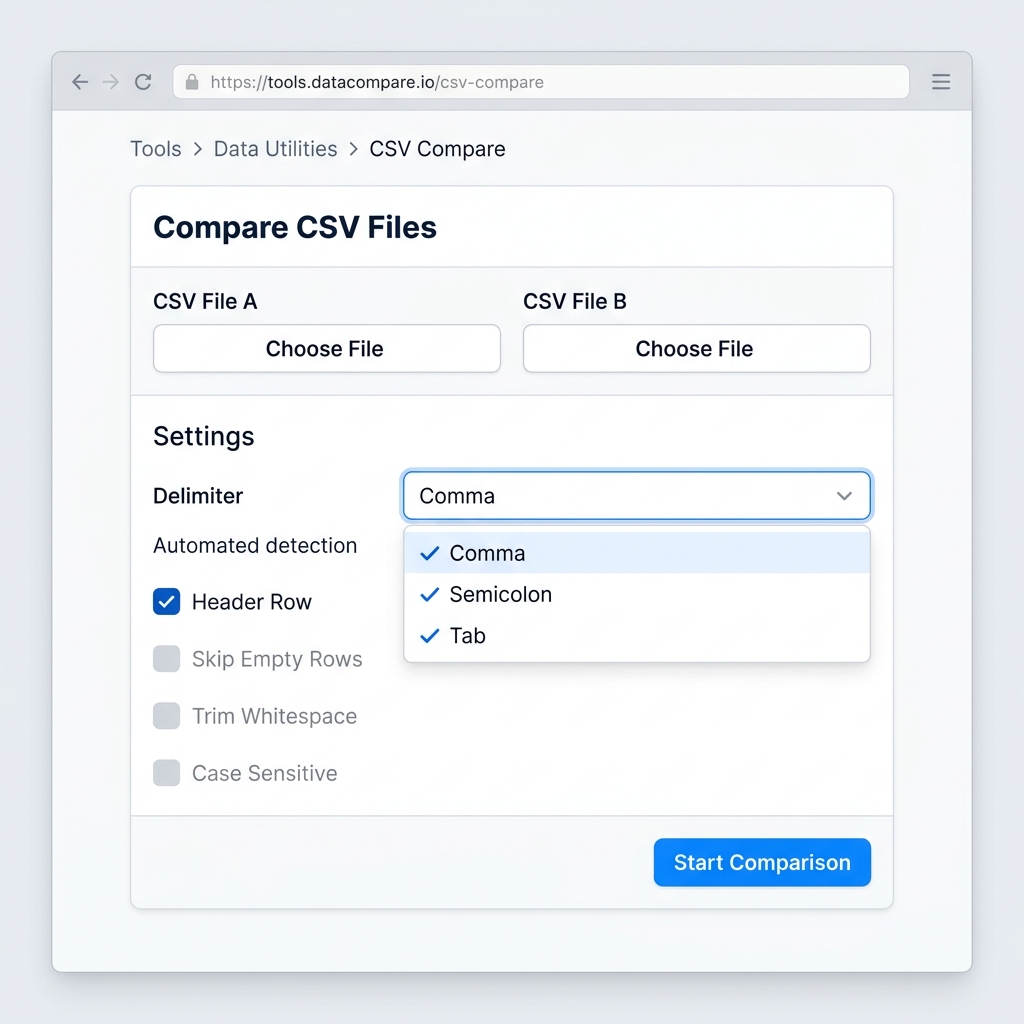 Figure 1: Setting up matching delimiters (commas, semicolons, or tabs) to parse CSV file structures correctly.
The Embedded Comma Problem (Escaped Fields)
If your dataset contains fields that include commas (e.g., street addresses like "123 Main St, Suite 4, Boston"), database exporters wrap that column in double quotes. A simple string split formula (like splitting lines by commas) will break, treating “Suite 4” and “Boston” as new columns. You need a parser that understands standard CSV quoting rules.
Line Ending mismatches (CRLF vs. LF)
Files generated on Windows systems use carriage return line feed characters (\r\n or CRLF) to mark row breaks, while Unix and macOS systems use a simple line feed (\n or LF). While these characters are invisible to human editors, comparison tools read them as string differences. This results in every cell in the final column flagging as a mismatch due to the hidden \r character.
3. Visual Reconciliation Logic: Text Diffs vs. Key Matching
This diagram illustrates how row shifting breaks traditional text diff checkers compared to how key-based matching keeps rows aligned:
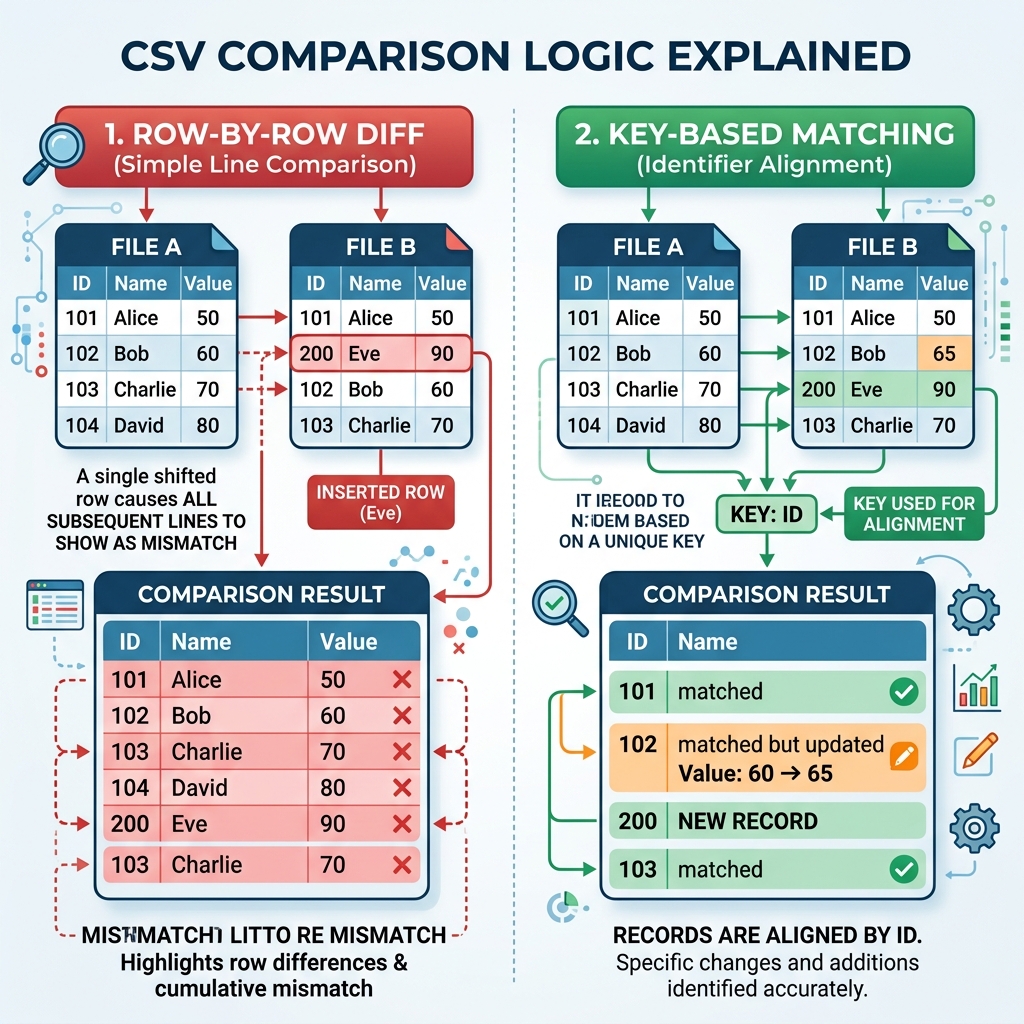 Figure 2: Comparing traditional line-by-line diffs (which break when rows shift) with key-based matching (which aligns records by unique identifiers).
4. The Data Compliance and Security Risks of Cloud Uploads
The primary risk of using free online CSV checkers is that many of them process data on their servers. When you upload a CSV file:
- Your file is transmitted over the network to a third-party server.
- The server parses the file, often caching it or logging it inside execution buffers.
- If the tool is compromised, your proprietary customer directories, passwords, or transaction lists are exposed.
For operations teams handling sensitive corporate data, uploading these files is a direct violation of data privacy laws like GDPR, HIPAA, and CCPA.
The Local-First Solution
You do not need to transmit files to check them. Modern browser APIs allow web applications to run complex set mathematics and data parsing entirely inside your local browser memory:
- Zero Server Transfers: Web Workers process your CSV imports directly on your machine.
- GDPR & HIPAA Compliance: Since your client data never leaves your device, there are no data transfers or compliance violations.
- Asynchronous Calculations: Processing large files (100,000+ rows) runs on background threads, keeping your UI responsive.
For quick, secure comparisons, tools like the FixData CSV Workspace allow you to drag, drop, and reconcile files locally using browser-native processing.
5. Step-by-Step Guide: Comparing CSVs for Differences Online
Follow this step-by-step workflow to compare your data columns securely:
Step 1: Verify the Delimiter format
Open your CSV files in a text editor (like Notepad or TextEdit) to inspect the structure. Verify if columns are split by commas, semicolons, or tabs.
Step 2: Load Your Files into the Local Workspace
Navigate to the FixData Workbench and drag your first file into the List A panel and your second into List B.
Step 3: Match by a Unique Key
Choose the column containing your unique identifier (e.g. customer_email or transaction_id) to ensure rows align correctly even if their vertical positions are different.
Step 4: Analyze Mismatches
Inspect the sorted tabs to review differences:
- Only in A: Records present in your first export but missing from the second.
- Only in B: Records present in your second export but missing from the first.
- Differences: Combined set of all non-matching rows.
6. Comparison Methods Reference
| Method | Best For | Row Shift Handling | Large Dataset Performance | Privacy Security |
|---|---|---|---|---|
git diff | Code lines, sorted config logs | Poor (Offset breaks page) | High | High (Local Offline) |
| Excel VLOOKUP | Simple spreadsheets | Medium (Directional locks) | Low (Freezes sheets) | High (Local Offline) |
| Cloud Diff Checkers | Non-sensitive text files | Poor (Offset breaks page) | Low (Upload latency) | Low (Server caching risk) |
| FixData (Local-First) | Sensitive CSV tables, lists | High (Key alignment) | High (Web Workers) | High (100% In-Browser) |
FAQ Section
Why is my online CSV compare tool freezing?
Standard browser text areas freeze when pasting files larger than 10,000 lines. To prevent this, use tools like FixData that parse files using Web Worker background threads.
How do I compare two CSV files with different column headers?
Ensure you select a matching key column present in both files (e.g. mapping User Email in File A to email in File B) to align the rows before running the comparison.
Is my data safe on free CSV diff checkers?
Many free web-based tools upload and cache your files on their servers, posing compliance risks. To protect sensitive customer info, only use client-side tools that run comparisons inside your local browser memory.
Author Section
Written by FixData Team
We build privacy-first spreadsheet comparison, data reconciliation, and Excel workflow tools designed to help teams compare, clean, and validate data without uploading files to external servers.