If you have ever merged subscriber lists from different marketing tools, only to find yourself sending duplicate emails to the same customer, you know how quickly double entries can corrupt your data. Even worse is when duplicates creep into your vendor ledger database or inventory SKU tables, causing catalog clutter and billing discrepancies.
Locating duplicates within a single worksheet column is relatively simple. But when you need to cross-reference two separate databases—such as matching your active CRM contacts export against a new lead list to extract unique entries—things get complicated. Using basic search loops or writing fragile formulas takes precious time and can freeze Excel if you are handling large files.
Here is an operational guide explaining why duplicate lines occur, how to identify them manually in Excel, and how to compare two separate lists online safely without data privacy risks.
1. Why Duplicates Happen (And the Operational Problems They Cause)
Duplicate entries rarely happen on purpose. In business operations, duplicates are almost always the result of integration lags and data transfer issues:
- API and Sync Delays: When your marketing platform (like Mailchimp) doesn’t sync instantly with your CRM (like Salesforce), contacts updated in both systems are exported as separate rows with minor spelling or spacing differences.
- Multiple Form Submissions: A customer clicks a “Submit” button twice on an online order form, generating two transaction profiles with matching name fields but different order IDs.
- Manual Entry Typos: Employees manually typing vendor records or inventory SKUs can insert trailing spaces or minor spelling variations, resulting in duplicate entries that Excel treats as unique strings.
The Operational Impact
Duplicates are not just messy; they represent a direct cost to your business. Sending duplicate marketing campaigns to a customer hurts your brand image and wastes newsletter send limits. In warehouse logistics, duplicate SKU registries lead to double-ordering inventory and invoicing errors. In database management, duplicates skew performance reporting, making key metrics unreliable.
2. How to Identify Duplicates in Excel (The Visual Way)
If you are working inside Microsoft Excel or Google Sheets, the easiest way to inspect your data for matching records is to highlight them visually using Conditional Formatting.
Visual Duplicate Highlight Workflow:
1. Select the data columns ──> 2. Home Tab ──> 3. Conditional Formatting ──>
4. Highlight Cells Rules ──> 5. Duplicate Values ──> 6. Soft Green Fill Color
Step-by-Step Duplicates Highlighting
- Select the data cells in both columns (e.g. highlight
A2:A500andB2:B500). - Navigate to the Home tab in the top ribbon menu.
- Click Conditional Formatting > Highlight Cells Rules > Duplicate Values….
- In the configuration dialog, select Duplicate in the left dropdown and choose your color theme (e.g. Light Red Fill or Green Fill).
- Click OK. All identical rows will highlight immediately.
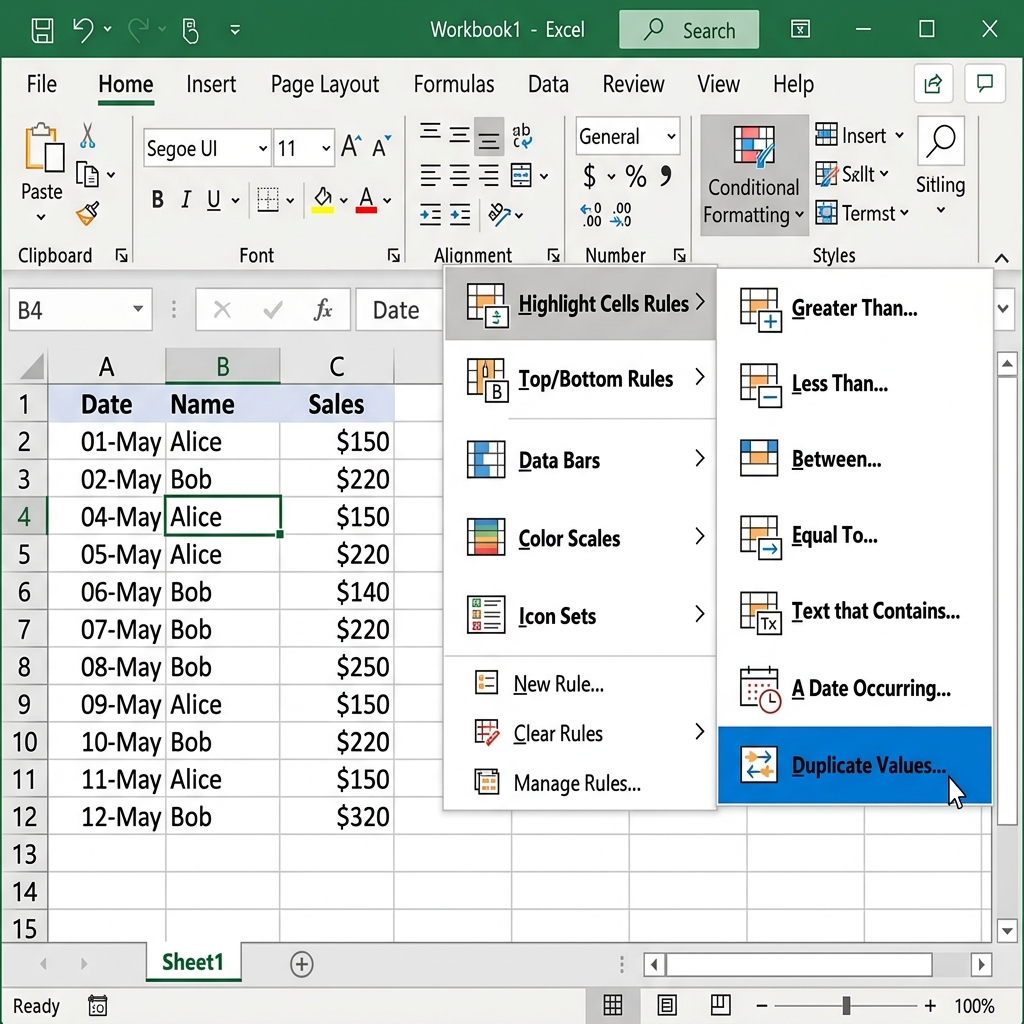 Figure 1: Accessing the Duplicate Values tool through Microsoft Excel’s conditional formatting dropdown.
3. How to Remove Duplicates Within Excel
If you want to physically purge repeating lines from a column in Excel:
- Select the column range containing duplicate items.
- Navigate to the Data tab in the top ribbon.
- Click Remove Duplicates in the Data Tools section.
- In the pop-up panel, confirm if your column has headers, check the target column box, and click OK.
- Excel will delete the repeating entries and output a status report showing how many duplicate values were removed and how many unique values remain.
4. Comparing and Deduplicating Two Separate Lists Online
When your datasets reside in different systems (e.g. comparing a vendor catalog export against a ledger spreadsheet), importing everything into one workbook just to run checks is slow. You need a way to compare the lists directly.
While many online list comparators exist, most of them upload your data to external databases, posing security risks. For operations teams handling sensitive client information, exposing these records violates privacy compliance rules (like GDPR or HIPAA).
The Secure browser-Native Alternative
To prevent data leaks, you can use client-side utilities that process your comparison entirely inside your browser’s sandboxed memory.
By running comparison logic locally via JavaScript Web Workers, tools like the FixData List Compare Workspace find matches and unique rows instantly without transmitting files over the network.
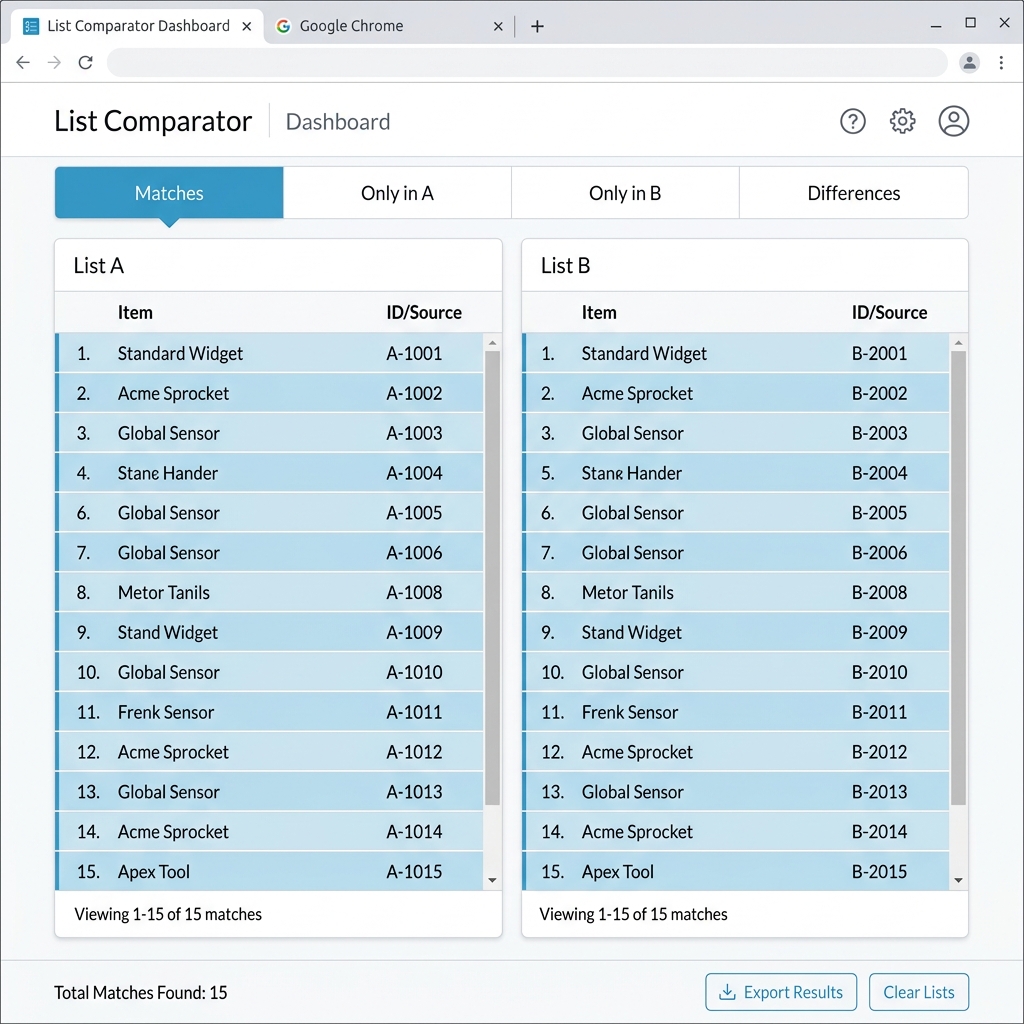 Figure 2: Finding duplicate entries across two lists using the FixData local browser-based reconciliation dashboard.
Reconciling Two separate Lists Step-by-Step:
- Open the FixData Workbench.
- Copy your first list (e.g. master customer emails) and paste it into List A.
- Copy your second list (e.g. bounce list) and paste it into List B.
- Verify matching entries under the Matches tab (these represent your duplicates).
- Isolate unique entries:
- Only in A: Subscribers who have not bounced.
- Only in B: New bounce records not yet in your master database.
- Click Export CSV to download the clean, filtered datasets locally.
5. Summary Table: Duplicate Detection Methods
| Method | Best For | Max Data Size | Privacy Rating | Operational Effort |
|---|---|---|---|---|
| Excel Remove Duplicates | Cleaning a single workbook column | Medium (<50k rows) | High (Local Offline) | Low |
| Conditional Formatting | Visual audits of small spreadsheets | Small (<10k rows) | High (Local Offline) | Low |
| COUNTIF Formulas | Complex cross-column formulas | Medium (<20k rows) | High (Local Offline) | Medium (Formula creation) |
| Cloud De-duplication Sites | Public text files, non-sensitive lists | Medium | Low (Server storage risk) | Low |
| FixData (Client-Side) | Reconciling CRM exports & customer lists | Unlimited (Web Workers) | High (100% In-Browser) | Low (Instant paste) |
FAQ Section
What is the difference between duplicates and unique values?
Duplicates represent rows that appear more than once within a dataset. Unique values are items that appear only once. When comparing two lists, matches represent duplicates across both sources, while differences represent unique entries.
How do I remove trailing spaces before checking for duplicates?
Hidden blank spaces are the most common reason duplicate checks fail. In Excel, you can clean your data using the =TRIM(A2) formula. If you are comparing lists online, FixData strips leading and trailing spaces automatically with one click.
Can Excel compare two sheets for duplicate rows?
Yes. You can use formulas like =VLOOKUP or =MATCH to reference rows on another sheet. However, for a faster comparison without writing formulas, you can paste the columns from both sheets directly into FixData to find overlapping items instantly.
Related Guides
Author Section
Written by FixData Team
We build privacy-first spreadsheet comparison, data reconciliation, and Excel workflow tools designed to help teams compare, clean, and validate data without uploading files to external servers.