Disclaimer: This article focuses strictly on data matching, record comparison, and spreadsheet reconciliation workflows. It does not constitute accounting, bookkeeping, tax, legal, or financial advice.
In business operations, keeping records aligned across different platforms is a constant challenge. When payments are collected, transactions logged in a bank statement must be compared against billing files generated by your billing or ERP system. When everything matches, operations run smoothly. But when discrepancies slip through, they can lead to billing errors, missing records, and reporting delays.
For many operations and data teams, comparing statement CSVs against billing exports is a manual chore. Invoices might have customer names, transaction IDs, or billing reference numbers, while bank transaction rows contain payment details and dates that are formatted differently.
This guide outlines why data mismatches occur between statement files and invoices, how to standardize transaction data in spreadsheets, how to perform record matching in Microsoft Excel using formulas and conditional formatting, and how to execute secure, privacy-first compares online without uploading sensitive billing files.
1. Why Statement & Invoice Mismatches Happen
Mismatches in transactional databases are rarely the result of a single error. Instead, they occur because data is captured and exported by systems that do not share the same formatting rules:
A. Timing and Clearing Delays
A customer might pay an invoice on a Friday afternoon, but the bank may not clear the transaction or record it on your statement until the following Monday. If you run a data reconciliation report over the weekend, that transaction will appear in your invoice system but will be missing from your statement.
B. Mismatched Transaction Reference Numbers
Billing systems generate unique identifiers, like INV-2026-9812. However, when a customer executes a wire transfer or card payment, they might type the reference number incorrectly (e.g., INV 2026 9812 or INV9812), or their bank might truncate the transaction description. These minor discrepancies prevent exact-match search functions from aligning the rows.
C. Formatting and Character Encoding Glitches
Spreadsheets exported from different systems often use incompatible data formats. A common example is date formatting: one platform might export dates as MM/DD/YYYY, while another uses the ISO standard YYYY-MM-DD. Additionally, leading zeros on invoice IDs (such as 009182) are often stripped out by Excel upon import, turning them into numerical values (9182) and breaking string-matching lookups.
D. Processing Fees and Deductions
Merchant processors or receiving banks sometimes deduct fees before depositing funds into your account. An invoice billed at $1,000 might appear on your bank statement as a deposit of $997. Because the values do not match exactly, simple amount-based filters will flag the transaction as unmatched.
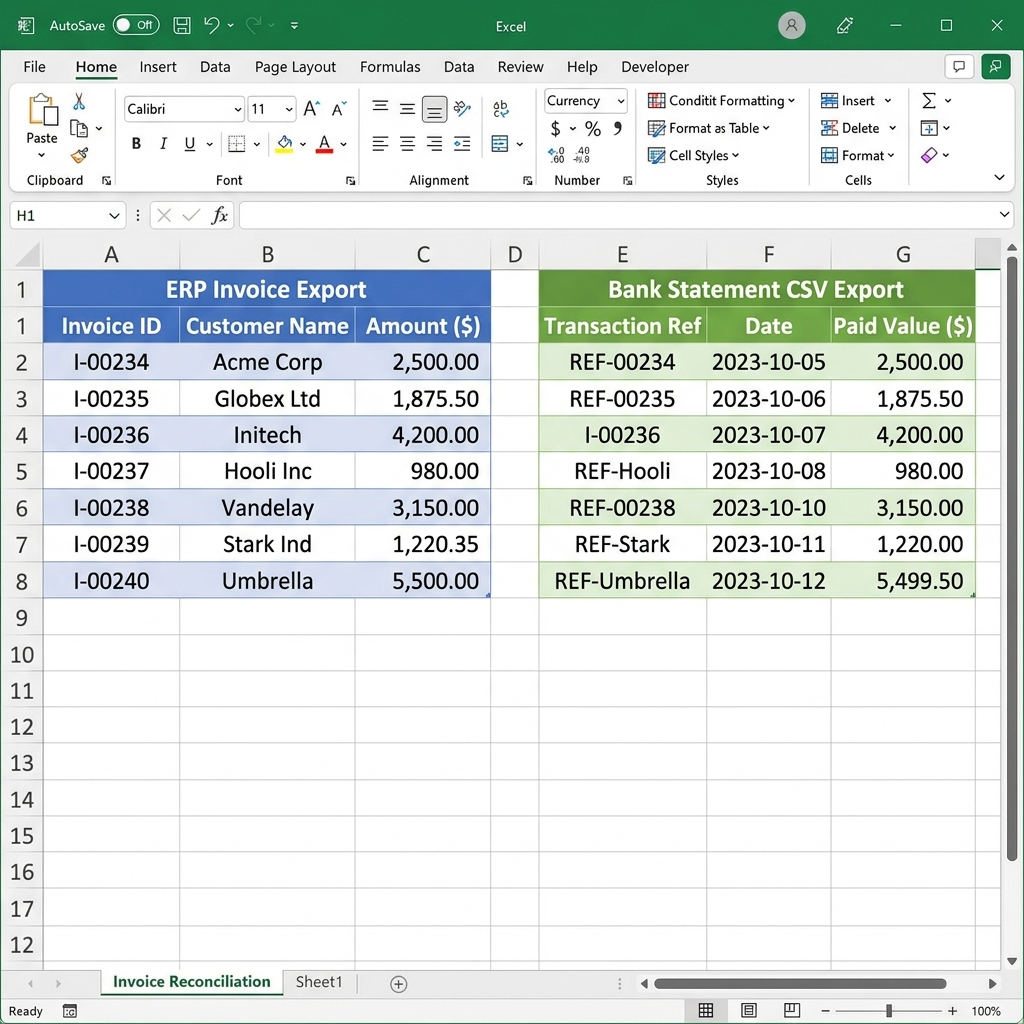 Figure 1: An Excel spreadsheet showing an ERP Invoice Export (Column A-C) side-by-side with a Bank Statement CSV Export (Column E-G), highlighting mismatches in reference numbers and amounts.
2. Pre-Reconciliation: Standardizing Transaction Data
Before running lookup formulas or comparison workflows, you must standardize the data. Raw exports often contain formatting differences that cause exact-match queries to fail.
Trim Invisible Spacing Mismatches
When copy-pasting reference codes or customer names, hidden trailing spaces frequently slip into the data. Excel treats "INV-1002" and "INV-1002 " as two completely different records. To fix this, you can run a helper column with the TRIM formula:
=TRIM(A2)
This formula strips all leading, trailing, and double-space characters from the text.
Align Capitalization Mismatches
Reference numbers should use consistent casing. If one system exports inv-3004 and another exports INV-3004, case-sensitive database lookups may flag them as mismatches. Standardize text using the UPPER formula:
=UPPER(A2)
This formula converts all lowercase characters in a cell to uppercase.
Convert Text-Formatted Numbers
If one of your lists represents invoice amounts as numbers and the other saves them as text strings, comparison operations will fail. To convert text numbers into actual numerical values:
- Select the column containing the text numbers.
- Click the warning icon next to the selected cells.
- Choose Convert to Number from the dropdown menu.
For more details on preparing datasets for clean comparisons, read How to Find and Remove Duplicates in Two Lists Online.
3. How to Match Invoices and Statements in Excel
Once your lists are cleaned and standardized, you can run matching workflows directly within Excel. Here are the two most common methods:
Method A: Highlighting Matches with Conditional Formatting
If you want to quickly see which invoice IDs appear on your bank statement:
- Place your invoice ID list in Column A (e.g.
A2:A1000) and bank statement reference codes in Column B (e.g.B2:B1000). - Select both columns.
- Go to the Home tab in the top ribbon menu.
- Click Conditional Formatting > Highlight Cells Rules > Duplicate Values….
- Set the dropdown to highlight Duplicate values and choose a fill color (such as Light Red or Green).
- Click OK. All reference numbers that exist in both columns will highlight immediately.
To review visual row matching in other operational scenarios, check out our guide on Reconciling Customer Lists: How to Safely Clean Marketing Databases.
Method B: Cross-Referencing Columns with the MATCH Formula
For a structured lookup that returns status markers for every transaction row:
- Assuming your Invoice Export is on
Sheet1in Column A (starting atA2), and your Bank Statement CSV is onSheet2in Column A. - In cell
B2ofSheet1, enter the following formula:=ISNUMBER(MATCH(A2, Sheet2!A:A, 0)) - Drag the formula down the column.
- If the invoice ID exists on the bank statement, the cell will return
TRUE. If the payment record is missing, it will returnFALSE. - Filter for
FALSEto isolate all outstanding, unpaid invoices.
For a detailed look at advanced matching alternatives to VLOOKUP, check out How to Compare Two Excel Columns Without VLOOKUP.
4. Troubleshooting Excel Formula Failures
While Excel is the standard tool for dataset comparisons, it has limitations when processing transactional data:
- UI Slowdowns and Crashes: If you are reconciling monthly exports containing tens of thousands of rows, running multiple lookup formulas (
XLOOKUP,VLOOKUP,INDEX/MATCH) will recalculate every time you make a change, which can freeze or crash Excel. - Exact Match Failures on Truncated Text: If a statement reference matches only a portion of the invoice ID (e.g., statement description is
WIRE DEP 8912for invoiceINV-8912), standard exact-match lookups will fail. Marking partial matches requires writing complex wildcard formulas like=VLOOKUP("*"&A2&"*", B:B, 1, FALSE). - Circular References: Accidental circular formula links can corrupt calculation paths, resulting in inaccurate matching flags.
5. Secure Online CSV Compare for Financial Logs
When Excel formulas get slow or lists grow too large, many operational teams look for online difference tools to compare files quickly. However, pasting bank statements and invoice registers into typical web-based tools introduces major data governance issues.
The Security Risks of Cloud Tools
Most free web utilities process comparisons on their own cloud servers. This means when you upload your files, you are sending sensitive customer transaction lists, invoice references, and financial numbers over the web to a third-party server.
For companies handling corporate transactional databases, exposing these records to unverified servers introduces serious privacy, compliance, and data governance risks. Sharing client billing data on third-party platforms can violate customer privacy agreements.
The Secure, Browser-Native Alternative
To prevent data exposure, you can use client-side tools that process your comparison entirely inside your browser’s sandboxed memory.
By running comparisons locally using JavaScript Web Workers, tools like the FixData Excel Column Reconciler match CSV data and locate differences instantly without uploading your files to external databases. Your data never leaves your device, making it safe to compare sensitive billing logs.
For more information on client-side CSV matching, read How to Compare CSV Files for Differences Online.
6. How to Reconcile Transaction Lists with FixData
The FixData List Compare Workbench provides a local-first interface designed to compare lists and CSV registers securely.
Here is the step-by-step workflow to reconcile statement files against billing registers:
- Export Your Reports: Export your invoice register from your billing system as a text/CSV column, and your bank statement transaction log as a CSV.
- Open the Tool: Navigate to the FixData Workbench.
- Paste Invoice Codes: Copy the invoice ID column and paste it into the List A panel.
- Paste Statement References: Copy the statement transaction description column and paste it into the List B panel.
- Run Sanitization Rules: Click the Advanced options dropdown and check Auto trim spaces to clean formatting anomalies.
- Review the Matches and Differences:
- Matches Tab: Identifies invoice codes that successfully correspond to cleared bank deposits.
- Only in A Tab: Highlights invoices that have been billed but do not appear on the statement (outstanding payments).
- Only in B Tab: Identifies deposits on your statement that do not correspond to an invoice (e.g. direct wire deposits lacking invoice markers).
- Export Your Results: Click Export CSV to download your matching and mismatching reports locally.
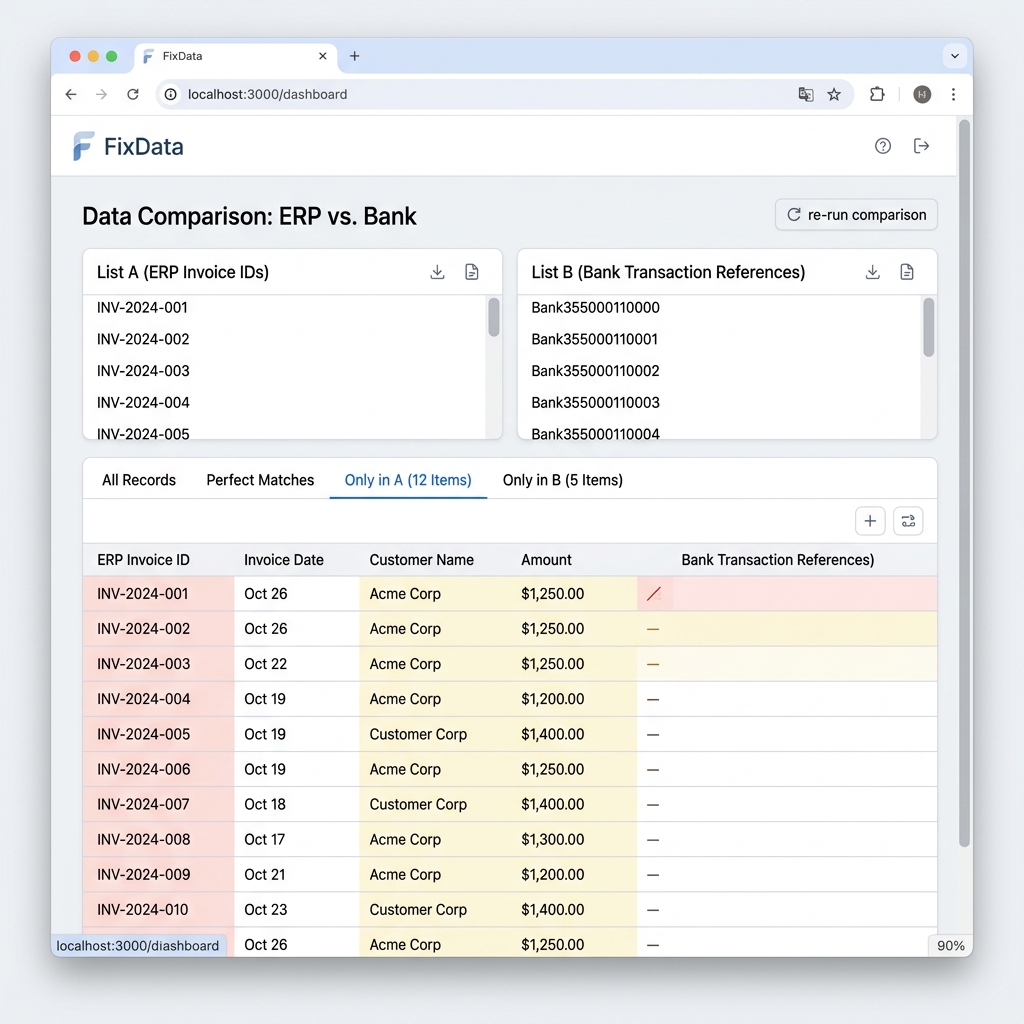 Figure 2: Isolating unpaid invoices by comparing transaction databases in FixData’s client-side workbench. Mismatches are flagged locally.
If you are looking to reconcile physical warehouse stock takes instead of financial transaction logs, check out our guide on How to Reconcile Inventory Lists in Excel.
7. Comparison Table: Database Cleansing Methods
Choosing the right comparison method depends on your list size, technical comfort, and compliance requirements:
| Method | Maximum Capacity | Processing Location | Privacy Rating | Best For |
|---|---|---|---|---|
| Excel Conditional Formatting | ~10k rows | Local Desktop (Offline) | Excellent | Visual checks on small spreadsheets |
| Excel MATCH Formulas | ~30k rows | Local Desktop (Offline) | Excellent | Operations staff comfortable with formulas |
| Cloud Scrubber Websites | Unlimited | Third-Party Servers | Low (Server Uploads) | Non-sensitive, public data columns |
| FixData (Client-Side) | 100k+ rows | Local Browser Memory | Excellent | Large CSV reconciliations & secure audits |
FAQ Section
How do I handle partial reference matches?
If customer reference numbers contain extra text (e.g. WIRE TRANSFER FROM JOHN DOE INV-9082), basic lookups will fail. In Excel, you can use wildcard lookups. In FixData, you can use custom regex string replacements in the advanced options to isolate the invoice number before comparing.
Why do duplicate transactions appear on statements?
Duplicate entries occur when a customer pays an invoice twice by mistake, or when a payment processing tool experiences network errors and submits a charge transaction twice. Reconcile both lists to isolate duplicate amounts under the matches tab.
Can I match transactions based on value alone?
Matching by transaction amount alone is risky because multiple customers might purchase items at the same price. Always match transactions using unique invoice IDs or transaction reference codes to ensure reconciliation accuracy.
Related Guides
- How to Compare Two Excel Columns Without VLOOKUP
- How to Compare CSV Files for Differences Online
- How to Find and Remove Duplicates in Two Lists Online
- How to Reconcile Inventory Lists in Excel
- Reconciling Customer Lists: How to Safely Clean Marketing Databases
Author Section
Written by FixData Team
We build privacy-first spreadsheet comparison and database reconciliation tools. Our utilities run entirely inside your browser’s memory, allowing operational teams to clean, validate, and compare transaction lists without data privacy risks.