If you have ever had to consolidate subscriber data from different marketing tools, you have likely run into the headache of contact discrepancies. Perhaps you merged an export from your email service provider with a list from your CRM, only to find duplicate messages going out to customers, or worse, suppression lists failing to filter out opted-out contacts.
In marketing operations, customer databases are constantly shifting. Subscribers opt in on landing pages, sales representatives log leads directly in the CRM, and email marketing tools track bounces and opt-outs in their own separate registries. Because data originates in multiple places, inconsistencies are inevitable. Without a regular process to reconcile these lists, duplicates and mismatches will accumulate, causing issues with list health, campaign performance, and compliance tracking.
Reconciling customer lists is not just about keeping things neat. It is a critical operational task. This guide will walk you through why database mismatches happen, how to clean them manually using Microsoft Excel, and how to execute secure, privacy-first list comparisons online without exposing sensitive customer data to external servers.
1. Why Customer List Mismatches Happen
Customer list discrepancies rarely result from a single error. In modern marketing setups, data splits across several platforms: a CRM (like HubSpot or Salesforce), an Email Service Provider (like Mailchimp or ActiveCampaign), and local spreadsheets from webinars or events. Mismatches typically happen due to three primary operational factors:
A. Sync Lags and API Disconnects
While software integrations aim to keep platforms aligned, real-time syncing often falls short. API limits, webhook failures, and scheduled batch syncs mean that changes made in one system may not immediately reflect in another. For example, if a contact unsubscribes on a Mailchimp landing page, the opt-out status might take hours—or even days—to sync to HubSpot. If you run a marketing campaign during that delay, you run the risk of emailing an opted-out contact.
B. Formatting Inconsistencies and Entry Errors
Human error and software formatting differences create subtle mismatches that database queries treat as unique records. Typical formatting issues include:
- Trailing and Leading Spaces: An export might save an email as
" john.doe@domain.com "instead of"john.doe@domain.com". - Case Sensitivity: While email servers ignore capitalization, some basic lookup functions in databases treat
"Sales@Company.com"and"sales@company.com"as distinct entries. - Hidden Unicode Characters: Copying data from web forms can introduce zero-width spaces (
\u200B) or byte-order marks (\uFEFF) that remain invisible to the naked eye but throw off exact-match comparisons.
C. System Migrations and Import Logic
Migrating from one marketing tool to another is a high-risk event for data quality. Different systems use different rules to handle duplicate contacts. HubSpot might use email addresses as unique identifiers, while a legacy system might allow multiple records with the same email. During a migration, merging these conflicting rules can lead to duplicate contacts or lost fields.
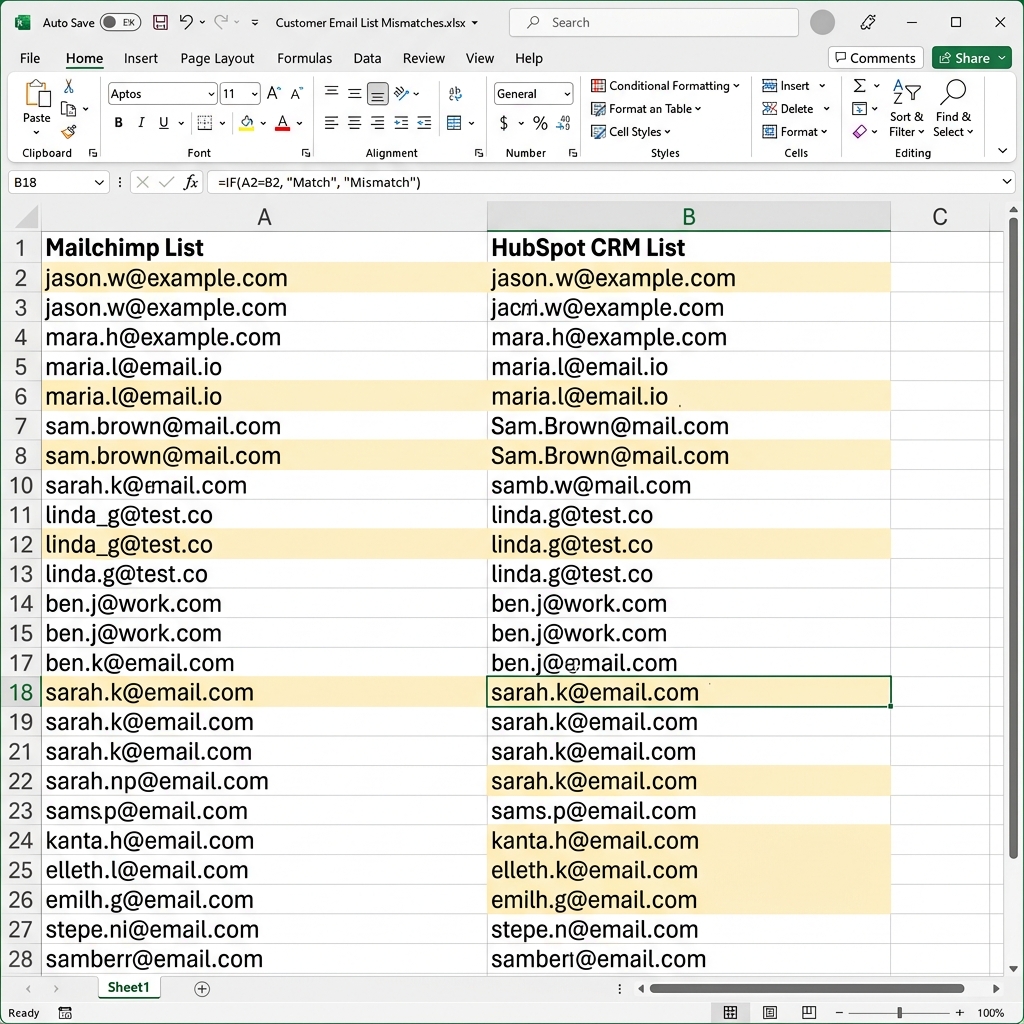 Figure 1: A spreadsheet showing common mismatches between a Mailchimp List (Column A) and a HubSpot CRM List (Column B), highlighting trailing spaces and capitalization issues.
2. The Operational Impact of Poor Customer Data
Ignoring data cleaning has real operational consequences. Bad data degrades marketing efficiency and introduces risks to client relationships:
- Wasted Marketing Budget: Most email service providers bill based on the total number of contacts in your account. Duplicate records mean you are paying twice to store and email the same person.
- Damaged Customer Experience: Sending duplicate emails to a subscriber makes your marketing look uncoordinated and increases the likelihood that they will unsubscribe or mark your emails as spam.
- Skewed Performance Analytics: Duplicate contacts inflate your open and click rates in some areas while lowering overall engagement metrics in others, making it difficult to measure true campaign performance.
- Privacy, Compliance, and Data Governance Risks: Sending marketing emails to users who have opted out violates data preferences. If a contact opts out in one system but their record remains active in another, you face data governance and compliance risks. Keeping suppression lists reconciled across all channels is essential for managing user preferences correctly.
3. How to Reconcile Customer Lists in Excel
For small to medium-sized databases, Microsoft Excel and Google Sheets offer reliable ways to locate matches and differences manually. Here are the two most common manual workflows:
Method A: Highlighting Duplicates with Conditional Formatting
If you have two columns of customer emails on the same sheet and want to see which contacts exist in both:
- Open your spreadsheet and place the two lists side-by-side (e.g., Column A and Column B).
- Select both columns containing the email addresses.
- On the Home tab in the top ribbon menu, click Conditional Formatting.
- Navigate to Highlight Cells Rules > Duplicate Values….
- In the pop-up box, verify that Duplicate is selected in the dropdown menu. Choose your highlight style (such as Light Red Fill with Dark Red Text).
- Click OK. All matching emails in both lists will instantly highlight, showing you the duplicates.
For more details on visual deduplication, check out our guide on How to Find and Remove Duplicates in Two Lists Online.
Method B: Checking Mismatches with the MATCH Formula
If you want to check if the emails in List A exist in List B without highlighting them:
- Assuming List A starts at cell
A2and List B occupies columnB:B. - In cell
C2, enter the following formula:=ISNUMBER(MATCH(A2, B:B, 0)) - Drag the formula down the column.
- If the value in List A exists in List B, the formula will return
TRUE. If it is missing, it will returnFALSE. - You can filter Column C for
FALSEto isolate contacts that are in List A but missing from List B.
To explore advanced Excel comparison options without writing complex lookup formulas, read How to Compare Two Excel Columns Without VLOOKUP.
4. Why Cloud-Based List Scrubbers Introduce Security Risks
When Excel formulas get slow or lists grow too large, many marketers look for online list comparison tools. However, copy-pasting customer lists into standard cloud utilities introduces significant security issues.
The Problem with Cloud Tools
Most free web utilities process comparisons on their own cloud servers. This means when you click “Compare,” you are uploading your customer database, which contains sensitive emails, names, and purchase histories, to a third-party server.
For companies handling sensitive lists, uploading records to unverified servers introduces serious privacy, compliance, and data governance risks. Under modern security frameworks, exposing customer records to third-party databases without explicit consent is a compliance issue.
The Client-Side Solution
To clean customer data securely, look for tools that use a local-first, browser-native processing model. By utilizing client-side JavaScript, tools can compute list differences directly inside your browser’s sandboxed memory.
No data is sent over the network, and no databases are updated. This approach ensures your lists remain entirely private, allowing you to clean customer databases while maintaining complete control over your data.
For a detailed look at secure, offline CSV matching, check our guide on How to Compare CSV Files for Differences Online.
5. Reconciling Lists Safely with FixData
The FixData List Compare Workspace is built to reconcile databases locally and securely. By processing comparisons client-side via JavaScript Web Workers, it handles large lists of over 100,000 rows without sending any data over the web.
Here is the workflow to reconcile a CRM export against an email list:
- Export Your Data: Download your CRM contacts (e.g., from HubSpot) as a CSV file and your email subscriber list (e.g., from ActiveCampaign) as a CSV or Excel file.
- Open the Workbench: Navigate to the FixData Homepage.
- Paste List A: Copy the email column from your CRM export and paste it into the List A panel.
- Paste List B: Copy the email column from your email service provider export and paste it into the List B panel.
- Use Clean Operations: If your lists contain trailing spaces or invisible formatting characters, click the Auto trim spaces checkbox in the advanced options. The local engine will clean these errors in browser memory.
- Analyze the Results:
- Matches Tab: Shows contacts that exist in both lists. These represent active subscribers registered in both platforms.
- Only in A Tab: Shows contacts that are in your CRM but missing from your email platform. This identifies contacts you need to import to your mailing lists.
- Only in B Tab: Shows contacts in your email platform that are missing from your CRM. This identifies sign-ups that need to be synced back to your sales database.
- Export Your Clean Lists: Click Export CSV to save your reconciled lists locally.
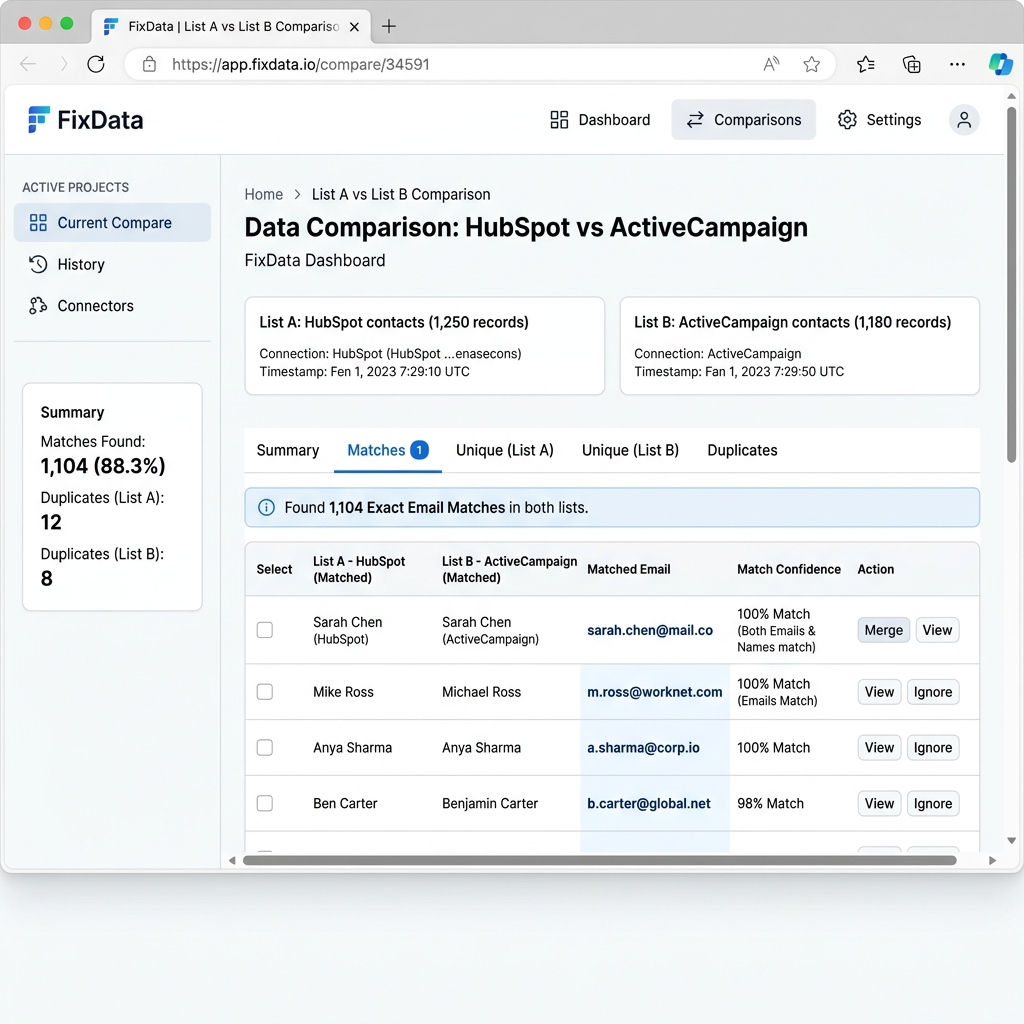 Figure 2: Reconciling HubSpot and ActiveCampaign lists locally in the FixData interface. Matches indicate contacts present in both databases.
If you are working specifically with inventory spreadsheets, read our tutorial on How to Reconcile Inventory Lists in Excel for tailored workflows.
6. Comparison Table: Database Cleansing Methods
Choosing the right reconciliation method depends on your list size, technical comfort, and compliance requirements:
| Method | Max List Size | Processing Location | Privacy Rating | Best For |
|---|---|---|---|---|
| Excel Conditional Formatting | ~10k Rows | Local Desktop (Offline) | Excellent | Visual audits of small spreadsheets |
| Excel MATCH Formulas | ~30k Rows | Local Desktop (Offline) | Excellent | Marketers comfortable writing formulas |
| Cloud Scrubbing Websites | Unlimited | Third-Party Servers | Low (Server Uploads) | Non-sensitive, public directories |
| FixData (Client-Side) | 100k+ Rows | Local Browser Memory | Excellent | Secure CRM migrations and suppression checkups |
FAQ Section
How often should customer lists be reconciled?
For active marketing teams, database checks should happen at least once a month. Reconciliations should also be performed before migrating platforms, when running large campaigns, or when updating consent lists.
Why do duplicate contacts still appear after cleaning?
This is usually caused by case sensitivity or hidden formatting. For example, database lookups treat user@domain.com and user@domain.com (with a trailing space) as two different addresses. Using a cleaning tool to trim spaces solves this issue.
Is it safe to compare suppression lists online?
It is only safe if the tool does not upload your files. Suppression lists contain opted-out users, and exposing them to external servers is a compliance risk. Always use client-side tools that process data entirely in your browser.
Related Guides
- How to Compare Two Excel Columns Without VLOOKUP
- How to Compare CSV Files for Differences Online
- How to Find and Remove Duplicates in Two Lists Online
- How to Reconcile Inventory Lists in Excel
Author Section
Written by FixData Team
We build privacy-first spreadsheet comparison and data reconciliation tools. Our utilities run entirely in your web browser, allowing teams to compare, clean, and validate marketing databases without data privacy risks.